Terminal
Foot is the default terminal for OmarOS. It's fast, lightweight, and compatible with even old computers. It does not, however, support native tabs or splits.
If you use Tmux, you may not mind, but if not, we fully support Alacritty, Ghostty, and Kitty as options as well. Pick your preference under Install > Terminal in the OmarOS menu.
You start a new terminal using Super + Return. (This binding will automatically point to whichever Terminal you've installed via Install > Terminal, and you can switch between installed terminals under Setup > Defaults > Terminal.)
Tmux
Tmux provides a consistent, programmable interface for panes, windows (aka tabs), and resumable sessions regardless of your terminal. It even works on remote hosts, so when you're SSH'ing into a server, you can use the same approach.
You start a new Tmux session in a fresh terminal using Super + Alt + Return, and because Tmux is a persistent process, you can resume your session even if you close that terminal. Just hit Ctrl + Space (called the prefix key) then s to see all your active sessions.
OmarOS ships with an ergonomically-optimized Tmux configuration, which has a lot of keybindings to learn, so keep the cheatsheet handy.
Tmux layout functions
Because Tmux is programmable, we can use functions to create layouts. OmarOS ships with four different functions for common developer layouts.
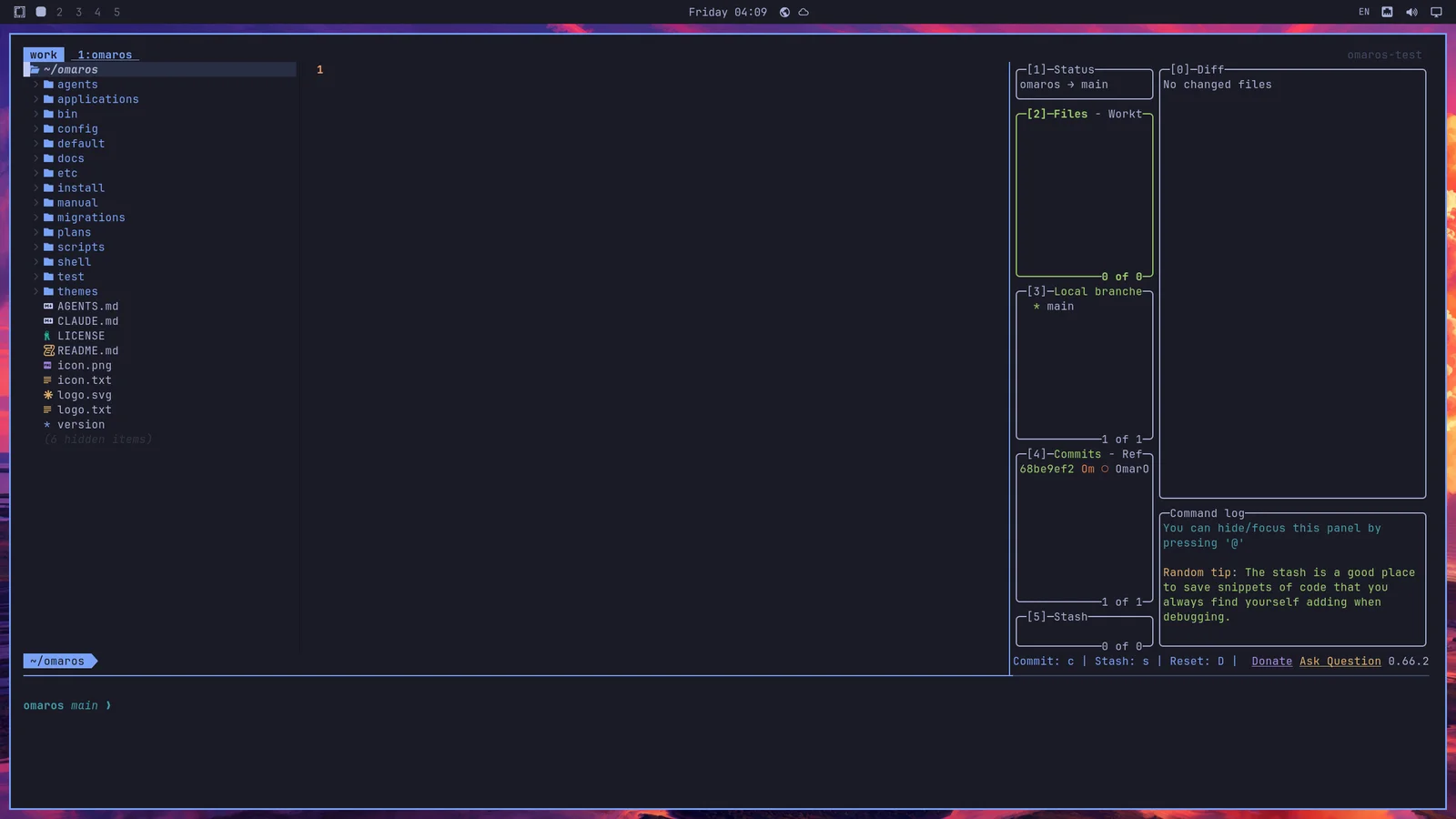
tdl [command] starts a three-way split IDE-like interface with the $EDITOR on the left, the command of your choice on the right (any tool you've installed yourself, such as a coding agent), and then a terminal at the bottom.
So tdl <command> would start this:
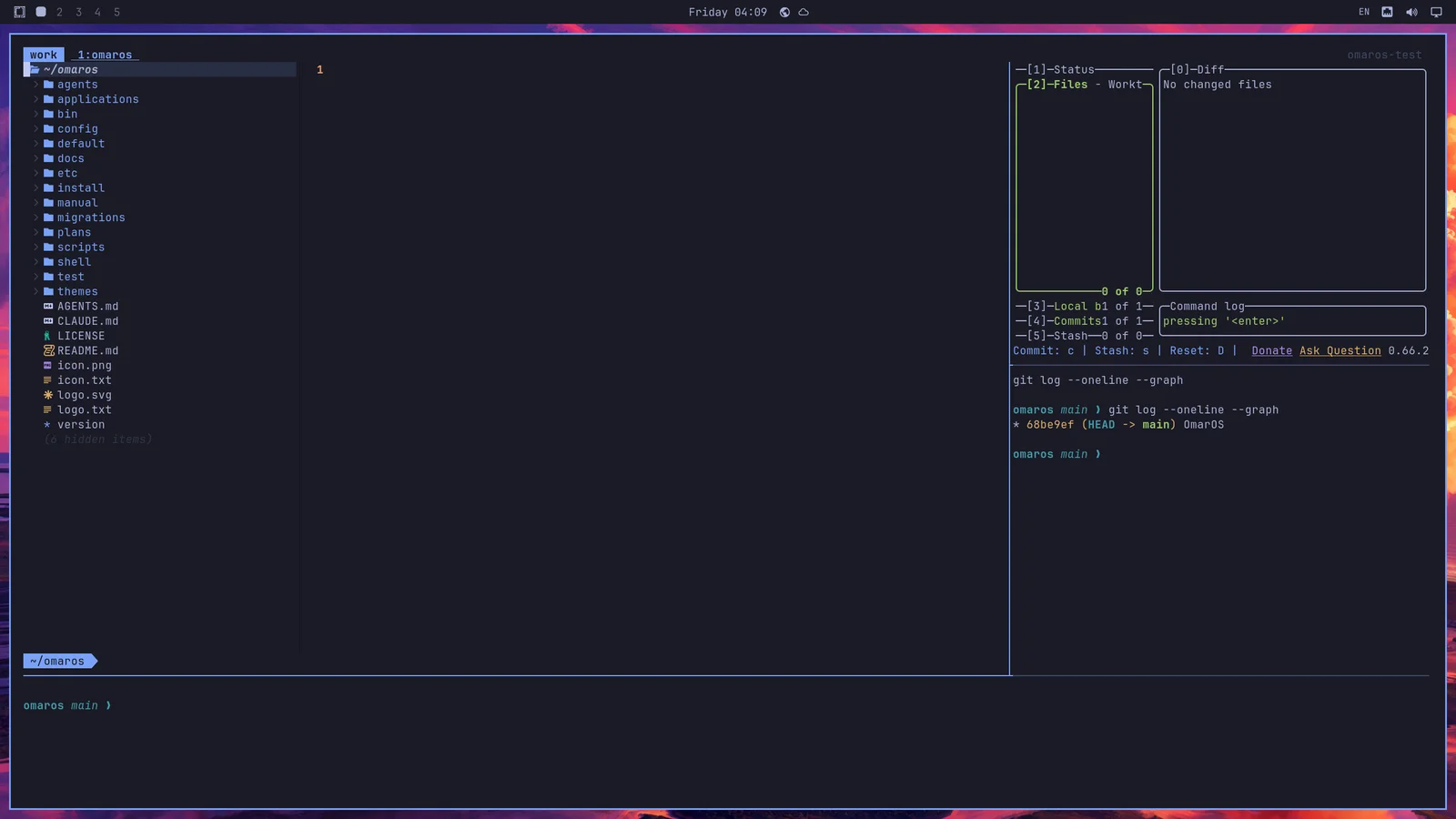
You can also start a second command in the right column with tdl <command> <second-command>:
There's also tds, which starts a four-way square with the editor top left, a live diff watcher top right, and terminals bottom left and bottom right.
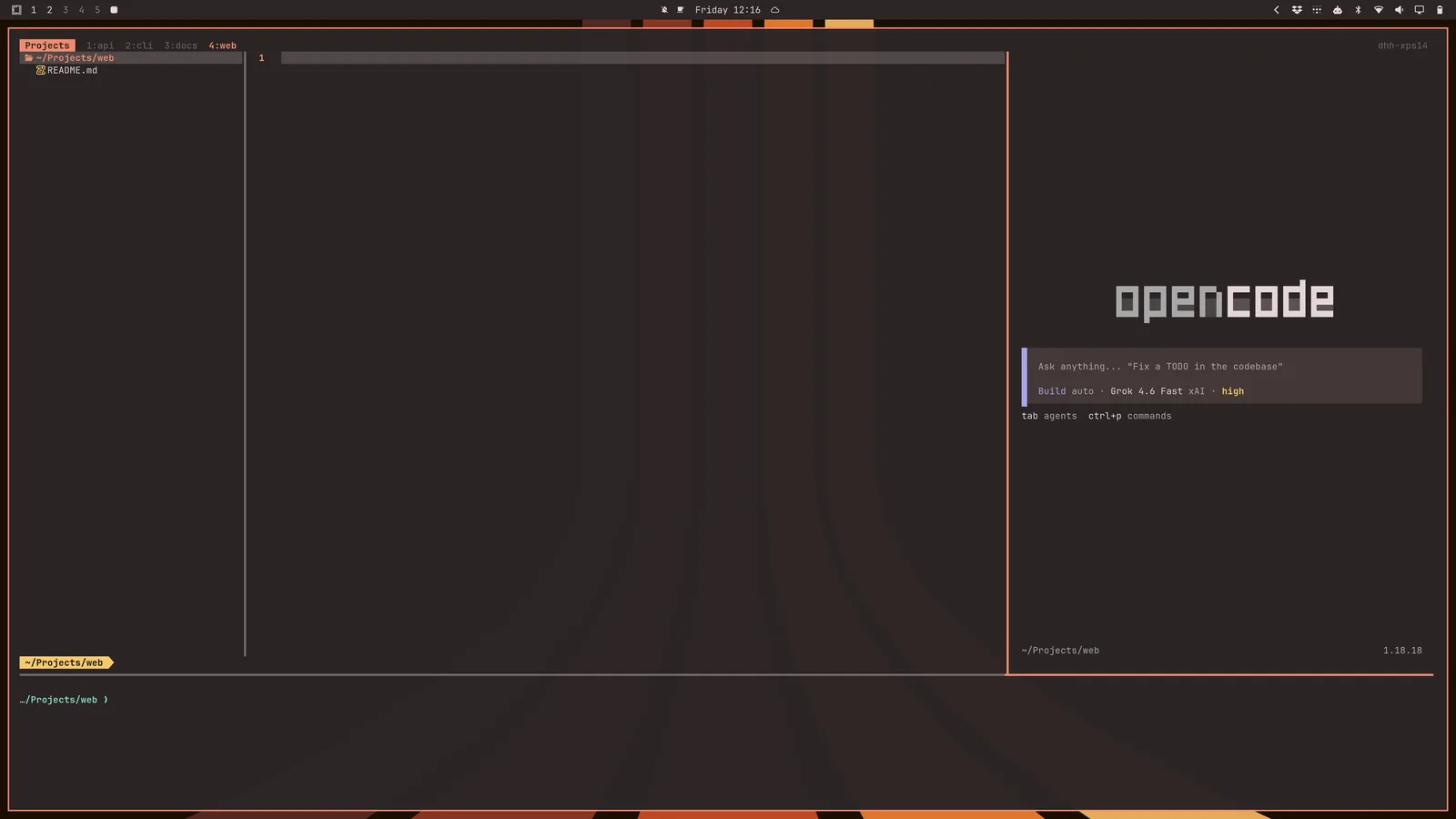
You can also start this layout configuration for every subdirectory in the current directory using tdlm [command], then navigate using alt + 1/2/3/4/5/...:
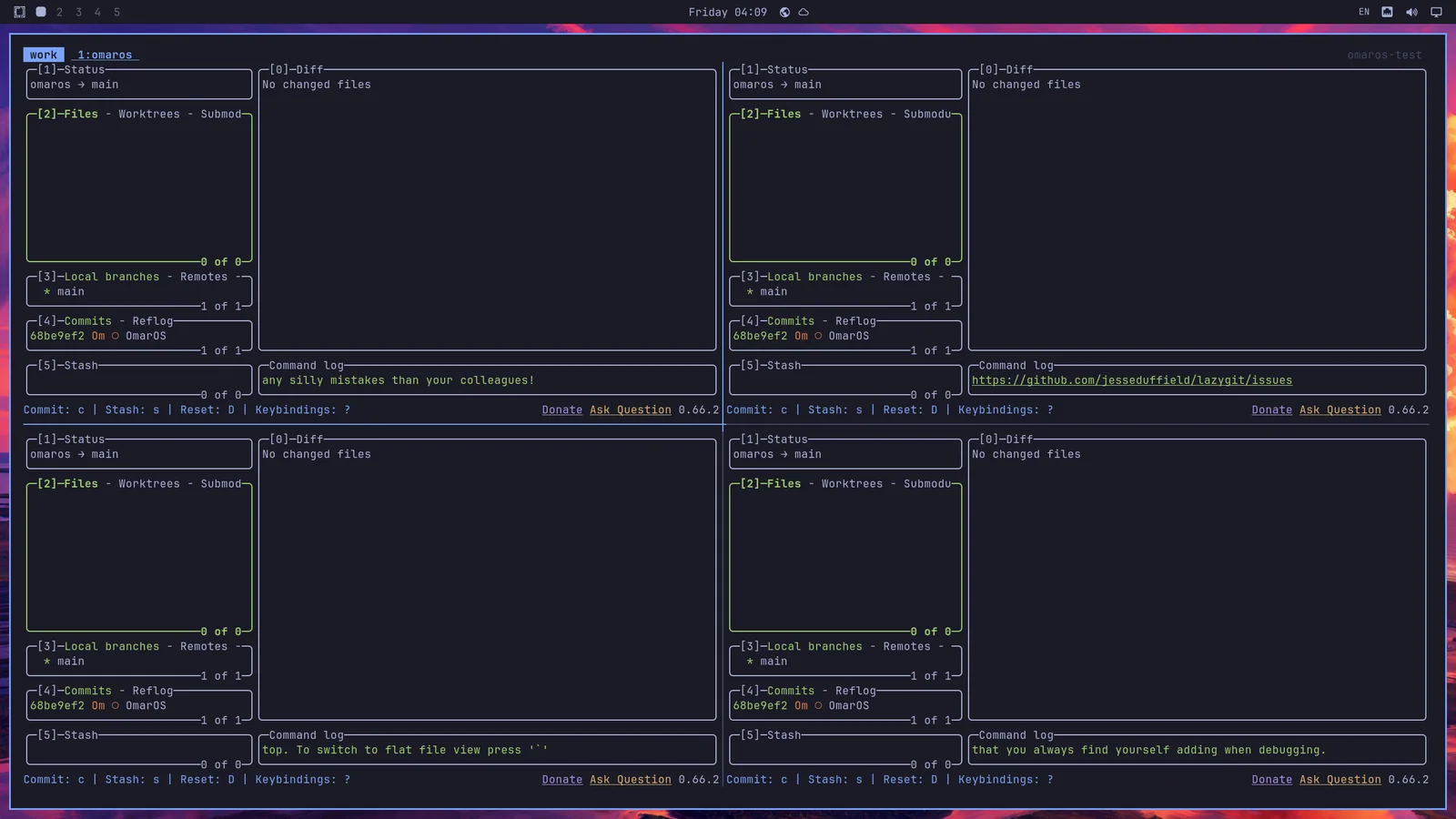
Finally, you can start a swarm of panes using tsl [panes] [command]. So tsl 4 <command> will give you a four-way grid all running that command: